1Before you start
The extension works inside NotebookLM. It has no screen of its own.
- Install the extension from the Chrome Web Store.
- Open a notebook at notebooklm.google.com.
- The NotebookLM Manager sidebar appears on the left side of the screen.
2Open and close the sidebar
There are two ways:
- The extension icon
 in the Chrome toolbar (top-right corner). Click it once to open or close the sidebar.
Can't see it? Click Chrome's puzzle-piece icon and pin NotebookLM Manager. - The collapse button ▯▮ at the top of the sidebar. It shrinks the sidebar to a thin strip of icons.
3Browse groups and sources
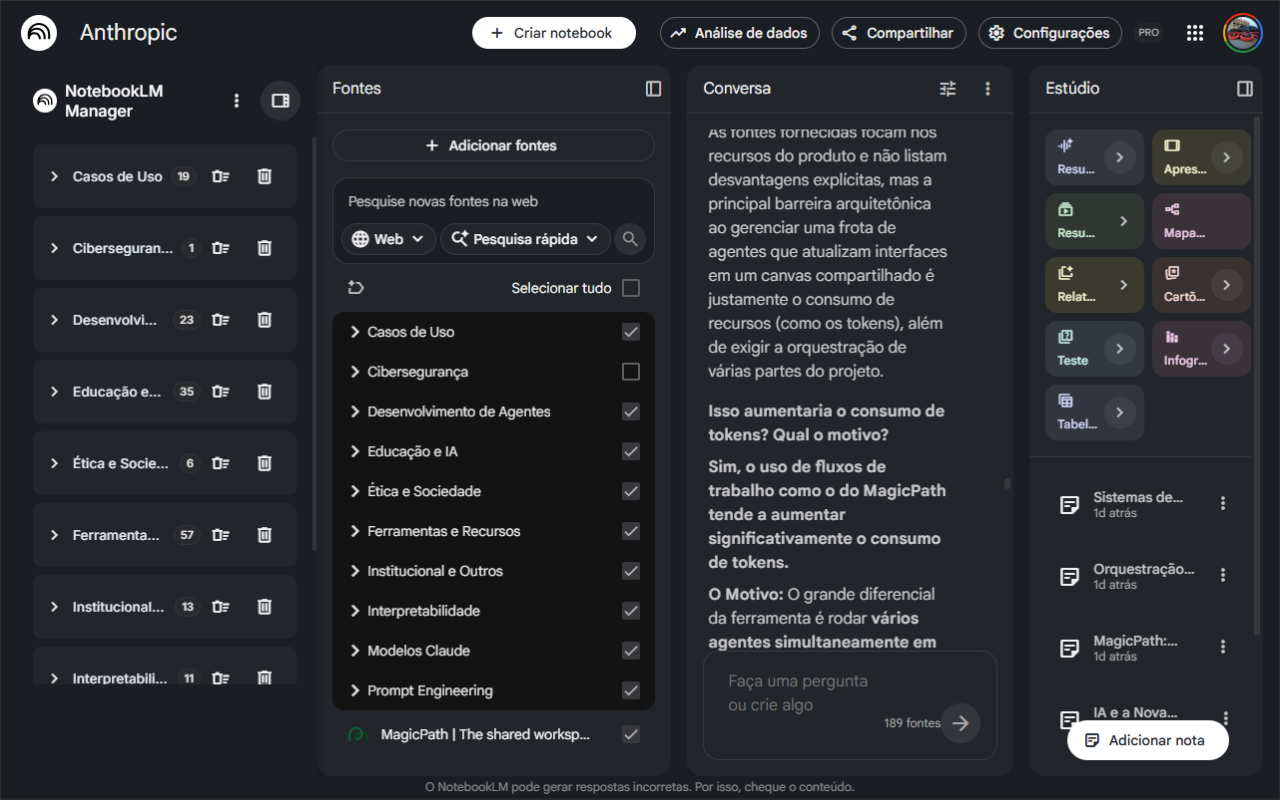
- Each row is a group. The number next to it is how many sources it has.
- Click the group name to open it and see its sources. Click again to close it.
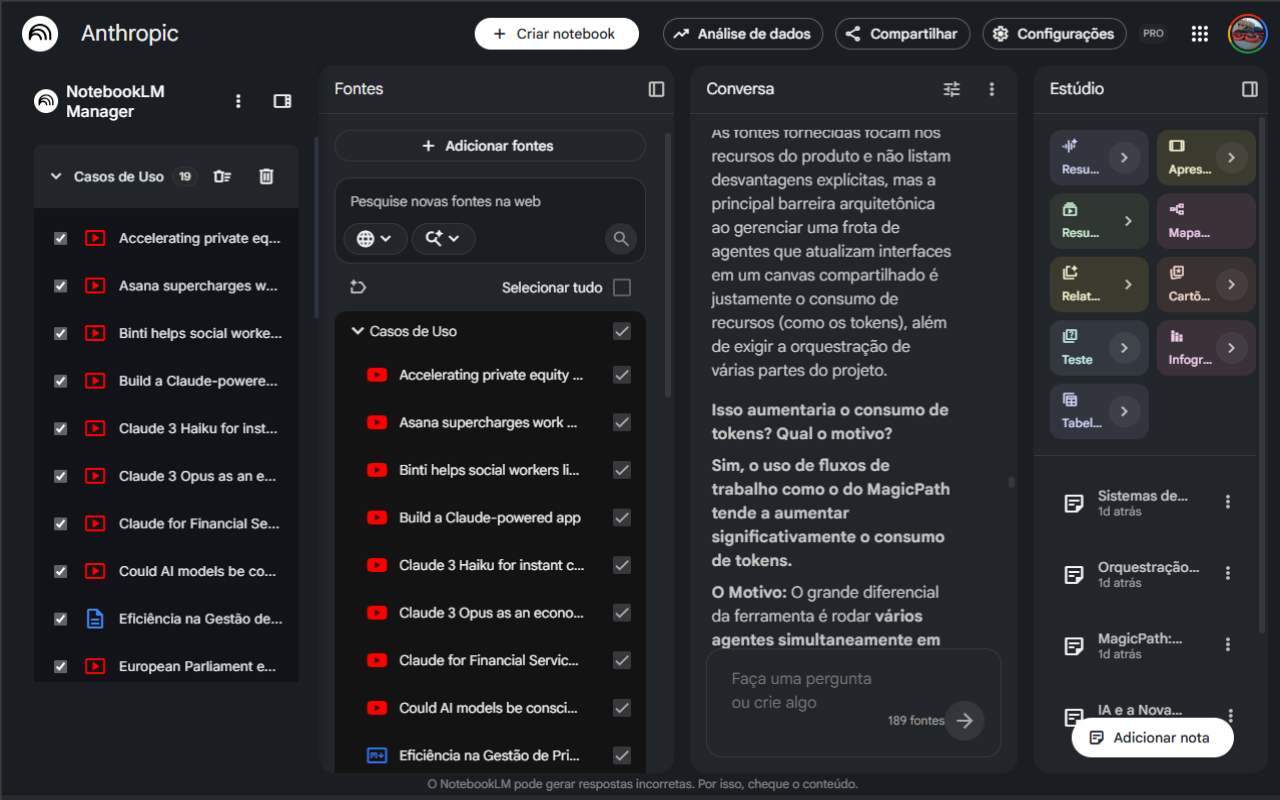
- Each source's icon shows its type: YouTube video, PDF, document, spreadsheet, link and so on.
- When you click a source in NotebookLM, the sidebar scrolls to it automatically.
4Check and uncheck sources
Each source has a checkbox.
- The extension's checkbox is the same one as NotebookLM's. Check it in one place and it's checked in the other.
- A checked source is one that NotebookLM's chat uses to answer.
- Checkboxes also let you choose what to keep when you delete (see the next step).
5Bulk delete sources
Each group has two delete buttons:
| Button | What it does |
|---|---|
| 🗑≡ Trash with lines |
Deletes the unchecked sources in the group. Checked sources stay.
Use it to keep only what matters: check what you want to keep, then click here. |
| 🗑 Plain trash |
Deletes all sources in the group. |
After you click, a window asks you to confirm. Click Delete to go ahead or Cancel to stop.
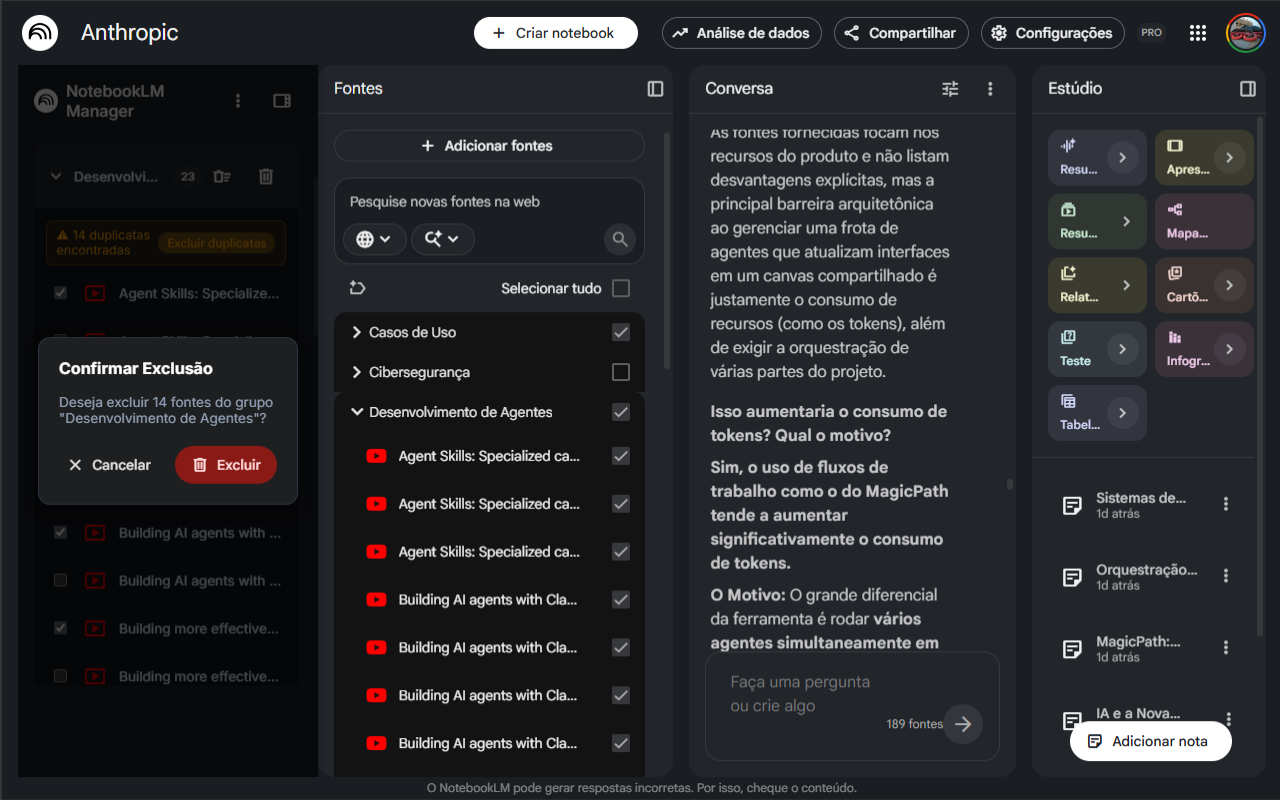
A progress bar shows how far along it is (for example, 7/14). Wait until it finishes before clicking anything else.
6Delete duplicates
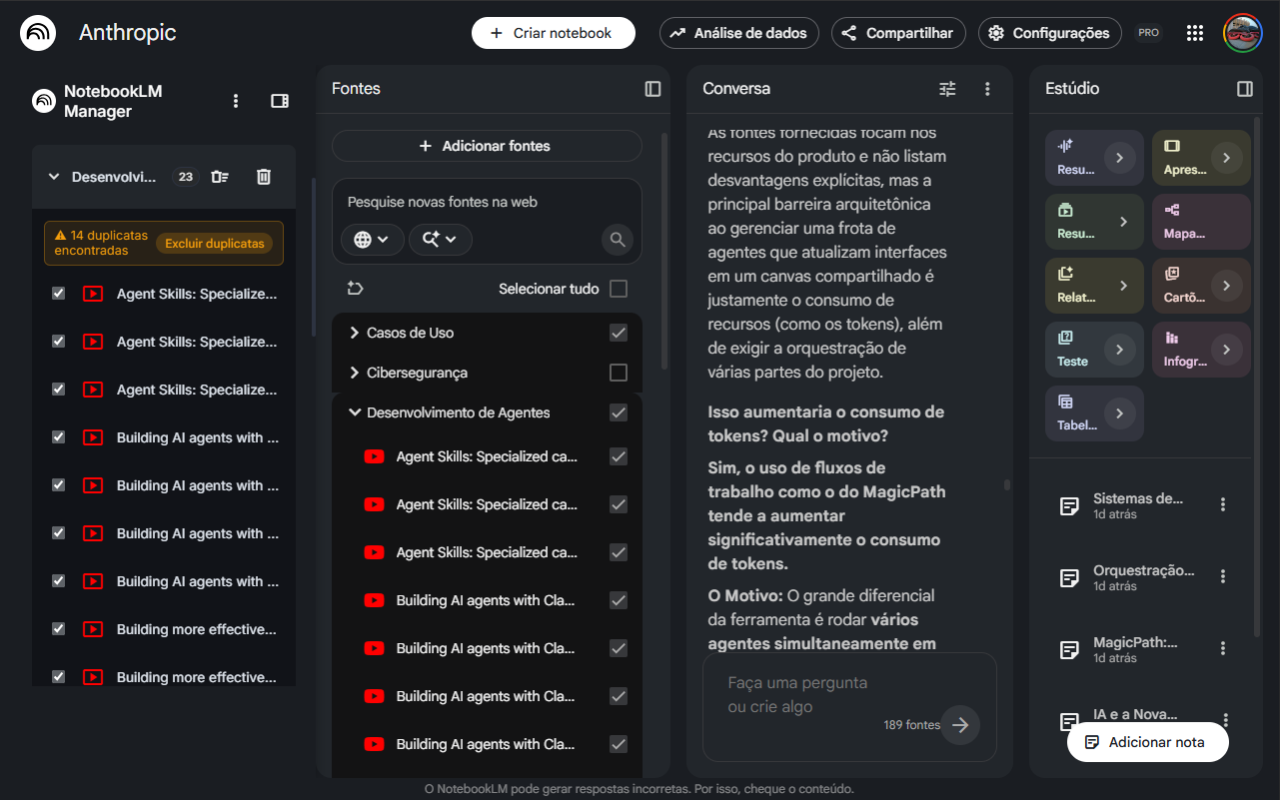
If a group has sources with the same name, a yellow notice appears: "14 duplicates found".
- Click Delete duplicates.
- The extension keeps the first copy and deletes the repeated ones.
7Settings
Click the three dots ⋮ at the top of the sidebar. Green = on. Red = off.
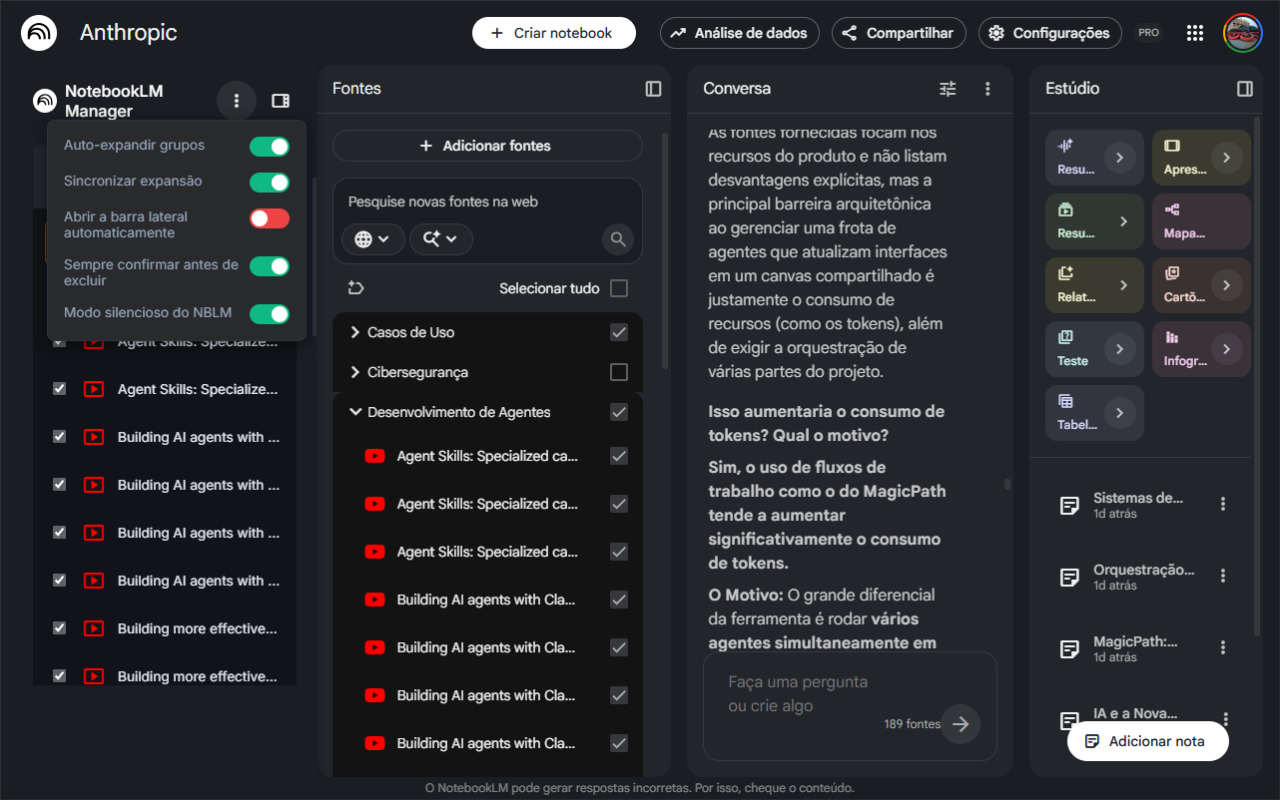
| Option | When it's on… |
|---|---|
| Auto-expand groups | If the sidebar is collapsed and you click a source in NotebookLM, the sidebar opens by itself. |
| Sync expansion | The sidebar follows what happens in NotebookLM and refreshes by itself. |
| Open sidebar automatically | The sidebar is already open every time you enter a notebook. |
| Always confirm before deleting | Shows the confirmation window before deleting. We recommend leaving it on. When it's off, sources are deleted right away without asking. |
| Hide popups during bulk delete | Hides the NotebookLM menus and windows that would flash on screen during a bulk delete. |
8Troubleshooting
The sidebar doesn't appear
1. Make sure you are inside a notebook at notebooklm.google.com.
2. Click the extension icon in the Chrome toolbar.
3. Reload the page (F5).
4. Go to chrome://extensions and check that NotebookLM Manager is turned on.
I see "No labels created yet"
Your notebook has no groups (labels). In NotebookLM, click Sort sources. The groups show up in the sidebar right after.
A source I just added isn't in the list
Wait a few seconds: the sidebar refreshes by itself. If it doesn't, close and reopen the group, or reload the page (F5).
Deletion stopped halfway
Don't click anything while the progress bar is on screen. If it stopped anyway, reload the page (F5) and run the deletion again: sources that were already deleted won't show up.
I deleted something by mistake. Can I undo it?
No. Deletion happens in NotebookLM itself, which has no trash bin. You'll need to add the source again. That's why it's worth keeping Always confirm before deleting turned on.